 freemapper
Manual › freemapper-courseplan
4. The editor
The editor shows the event in the browser. You can place, move and delete controls, build courses and categories, bend and tape legs, place control numbers, draw special objects, choose control description symbols and take each step back. The map under the courses is the real one. The editor runs the check as you work and shows its findings. Export, import and sync with Purple Pen are in the Event menu.
Starting it
freemapper-courseplan edit rummelsburg-sprint.courseplan.toml
The command loads the project, opens the browser and prints the address on a single line, such as http://127.0.0.1:47123/3f9c…/. If the project file is broken, it names the file and exits with code 1 without printing anything. It runs until you press Ctrl+C or choose "Close editor" in the "Event" menu. Both end it with exit code 0.
--port Npicks the port. Without it the program takes a free one. If the port is taken, the program says so and exits with code 1.--no-browserdoes not open the browser. You open the printed address yourself. If the browser cannot be started, the program prints a hint and keeps running.- The page speaks the program's language (
--lang en,FREEMAPPER_LANGor the system language setting). The page has no language switch; to change the language, restart the editor.
One editor belongs to one project. To open a second project, start a second editor.
What the page shows
- On the left is the tree of the event with the groups Courses, Categories, Controls and Special objects. "All controls" shows every control with its code.
- In the centre is the map. When you select a course, the editor draws its circles, start triangle, finish, legs and control numbers on top. A number box with a dashed outline was placed automatically; the project stores no position for it yet.
- On the right are the properties of the selection, for example name, length and climb of a course, or code, kind, position and description of a control. For a control the list also names the map objects within 3 mm. Below them are the findings of the selection.
- The status bar at the bottom names the map, the scale, the map kind and the cursor position in map millimetres. Messages appear there too.
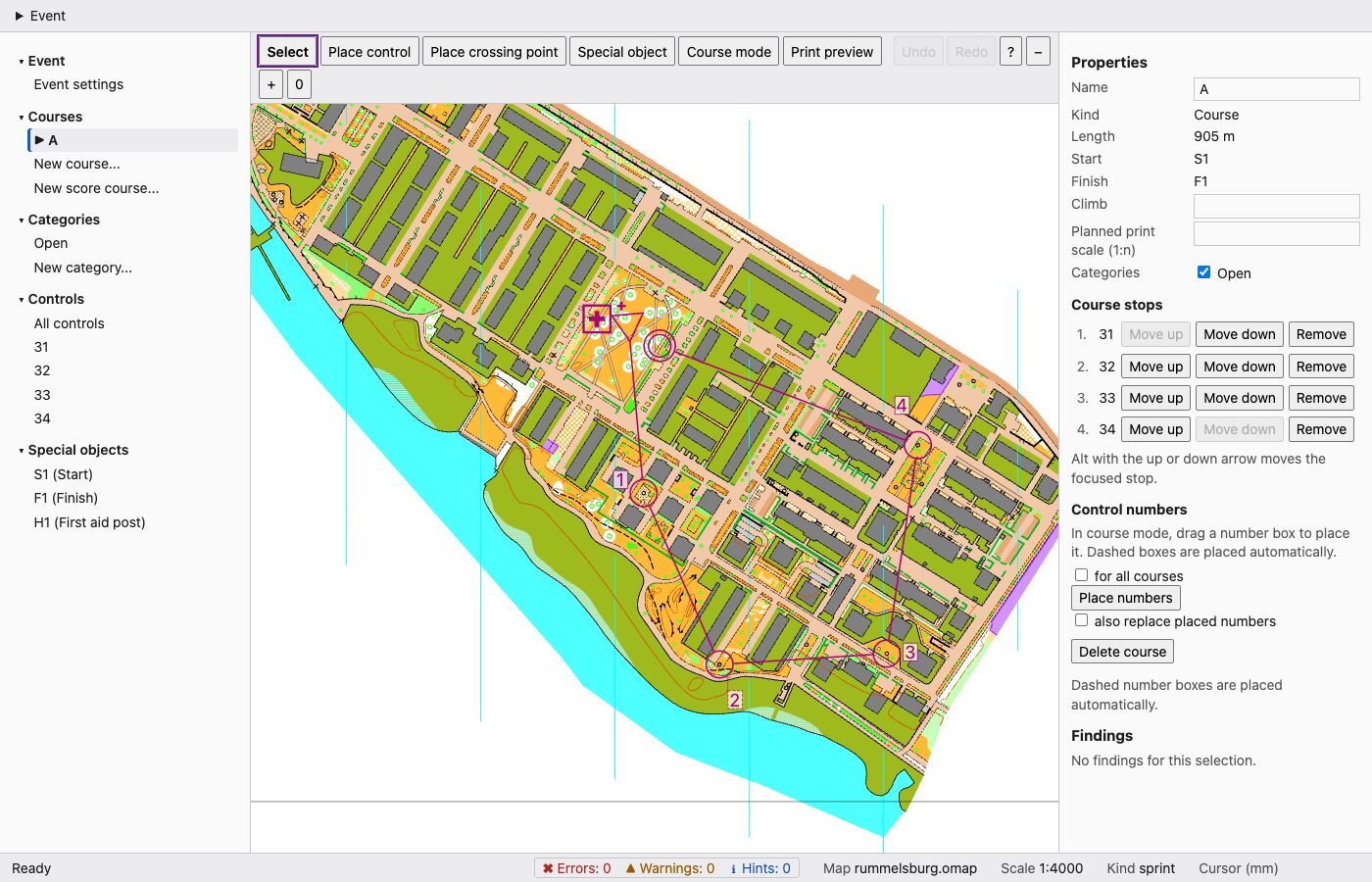
The editor with course A (four controls, 905 m) on the sprint map Rummelsburger Bucht; start and finish stand in the park in the middle. English interface. Map: Remo Madella, MOO Challenge Berlin 2025, see examples/rummelsburger-bucht/ATTRIBUTION.txt.
The map
The map is drawn by the renderer that freemapper-print uses too (freemapper-render in freemapper-core v0.14.1). The editor shows it as SVG, so lines and text stay sharp at any zoom. Circles, legs and numbers lie on top and sit at the map position they belong to. The status bar and the properties give positions in map millimetres, not page millimetres.
The page asks for the part of the map you see, plus a margin, 150 ms after the view stops moving. While you drag the view, nothing is requested; the new section appears when you let go. When the map file changes, the editor draws it again.
Three limits can show up in the status bar:
- The map is larger than one A3 sheet at map scale. The renderer can only draw a page of A4 or A3. The editor draws the middle part and says so. Courses and controls outside that part stay visible on the overlay, but you see no map beneath them. Core would need a free page size to lift this limit.
- The map is very detailed. The renderer leaves out objects once its budget for the page is spent, shortens some and drops some area patterns. The editor says the map area is incomplete. Courses are not affected. Hidden symbols stay silent.
- The zoom is too high. If the section you look at would need an image of more than 100 000 px on a side, the server refuses to draw it, the status bar says so and the overlay stays. Zoom out or move to a smaller section. The page itself limits the image to 6 000 px on a side, so you will meet this message only after a hand-made request.
The "Print preview" button (key P) shows the selected course the way freemapper-print draws it. The server hands the course to the shared renderer, which paints the purple layers into the map image; the editor's own overlay is hidden. Editing is off while the preview is on (the tree, the properties, undo and the keys are switched off), and a press on the map only pans. The button works once you have selected a course. A test compares the editor's circles, legs, marked legs, crossing points and number boxes with the renderer's to 0.01 mm. The decisions are in ADR 0046, 0056 and 0057.
Controls
The toolbar has the tools "Select", "Place control", "Place crossing point" and "Special object". Every change is saved at once, through the same operations as the command line and the AI assistant, so the same checks apply. If the program refuses a change, for example a position outside the map, the file stays as it was and a message says why.
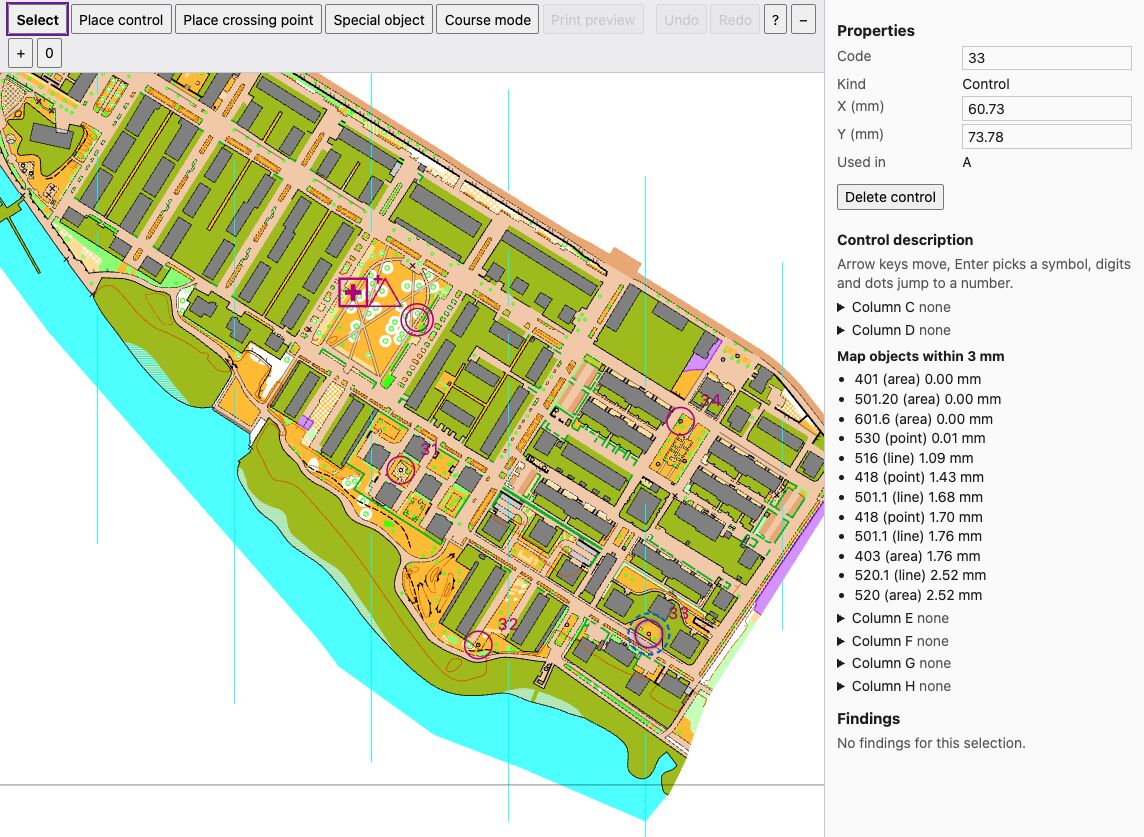
Control 33 selected. The properties show code, kind, position and the courses that use it, then the control description and the map objects within 3 mm. Map: Remo Madella, MOO Challenge Berlin 2025, see examples/rummelsburger-bucht/ATTRIBUTION.txt.
- Select. With the "Select" tool, click a control in the map or in the tree. A click selects the control whose centre is nearest to the pointer, as long as the pointer is within the circle's radius plus the line width. The properties on the right show it.
- Place. Choose "Place control" and click on the map. The editor adds a control at that point.
- Place a crossing point. "Place crossing point" works the same way but adds a control of the kind "Crossing point". It takes the next free code, shares the numbering with the other controls and appears in the tree with "(Crossing point)". On the map it is drawn as two arcs without a circle. Its properties show code, kind and position, but no control description, since a crossing point has none. To add it to a course, use course mode like for any control.
- Move. Drag a circle, or type a new value into the fields X (mm) and Y (mm) in the properties. You may write a decimal comma or a decimal point,
12,5or12.5. Anything else marks the field and shows a hint. While you drag, only the circle moves. Legs and numbers follow when you let go. Esc cancels the drag, and the control stays where it was. - Nudge. With a control selected, the arrow keys move it by 0.1 mm, with Shift by 1 mm. The editor saves once when you release the key, so holding a key makes a single undo step. Without a selection, the arrow keys move the view.
- Change the code. Edit the "Code" field in the properties. The courses and accepted findings that name the control follow. The editor refuses a code that is empty, has spaces at its ends, is longer than 64 characters or belongs to another control. On the command line the same is
freemapper-courseplan control code hall.courseplan.toml 31 K7(see "Changing a code or a name on the command line" below). - Delete. Press Delete or Backspace while the focus is on the map or the tree, or use "Delete control" in the properties. In a field or on a button the keys do nothing. A control that no course visits is deleted at once; undo takes it back. If courses visit the control, a dialog lists them and asks. The focus is on "Cancel". "Delete" removes the control and takes it out of those courses. A stray Backspace on a selected, unused control therefore deletes it without a question; undo brings it back.
Courses and categories
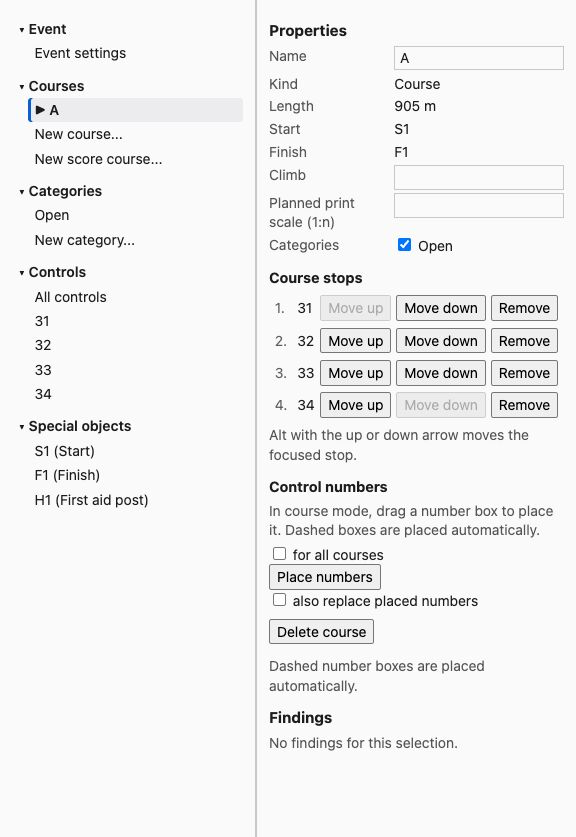
Course A selected. Left the tree with courses, categories, controls and special objects, right the properties of the course with the stops with "Move up", "Move down" and "Remove", the category box and the control numbers. Map: Remo Madella, MOO Challenge Berlin 2025, see examples/rummelsburger-bucht/ATTRIBUTION.txt.
- New course. Choose "New course..." under "Courses" in the tree and type a name. The course gets the start and the finish of the event. If the event has not exactly one start and one finish, the editor says so and adds nothing. A name that is taken, empty or longer than 200 characters is refused in the dialog.
- Rename a course. Edit the "Name" field in the properties of the course. Special objects and accepted findings that name the course follow. On the command line use
freemapper-courseplan course rename hall.courseplan.toml A Long. - Course mode. Select a course, then choose "Course mode". The controls the course does not visit appear in grey. A click on a control adds it before the finish. To insert a control inside the course, first click the leg where it belongs, then the control. The chosen leg turns thick and blue, and the status bar says which one it is. Esc drops the chosen leg; a second Esc leaves course mode. Course mode has no key.
- Stops. The properties of a course list its stops. The buttons "Move up", "Move down" and "Remove" change the order. With the focus on a row, Alt+Up and Alt+Down move the stop. Each change is one step for undo and saves the whole list at once. If a change sends a leg to another stop, that leg loses its bends and tape. The status bar names those legs.
- Course details. Climb and planned print scale are fields in the properties; an empty field removes the value. The check boxes assign the course to categories.
- Categories. "New category..." adds one. Its properties hold the rule category and the expected starters; an empty field removes the value. "Delete category" removes it. The editor refuses this while a course still uses it, and says so above the map.
- Event. "Event settings" in the tree shows the discipline, which you cannot change here, the rule profile with its overlays, both as lists of the profiles the program knows, the date (
YYYY-MM-DD), the organizer and the start window in minutes. An empty field removes the value.
Legs and bends
A leg is the straight line from control to control until you bend it. Click it with the "Select" tool to choose it.
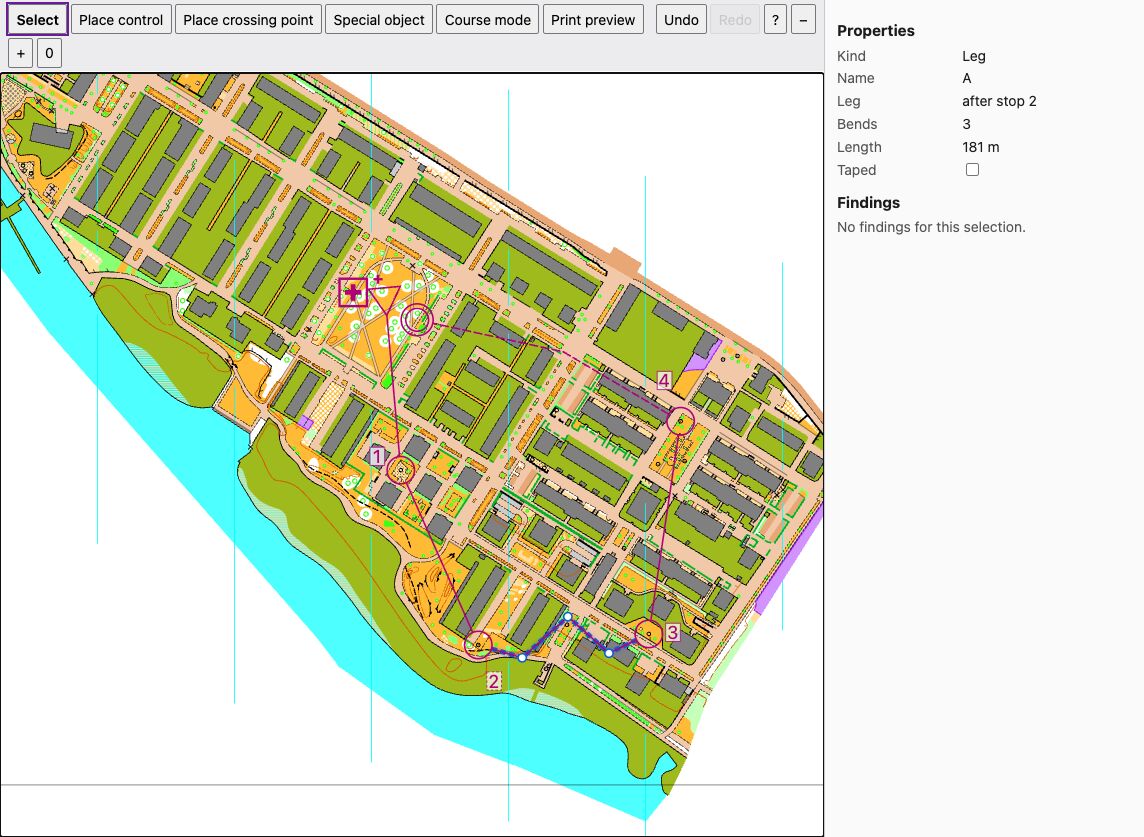
A leg chosen with the "Select" tool. The leg from control 32 to control 33 has three bends (the white dots); the properties show their number and the box "Taped". The dashed leg from control 34 to the finish is taped and has one bend. I set these bends only for the picture: legs are straight by default, and the course of the example has no bend. Map: Remo Madella, MOO Challenge Berlin 2025, see examples/rummelsburger-bucht/ATTRIBUTION.txt.
- Add a bend. Drag the line of the chosen leg. A bend appears where you let go.
- Move or delete a bend. Drag a bend to move it. A click on a bend chooses it, and Delete removes it.
- Tape a leg. The "Taped" check box in the properties of the leg marks it as a taped leg.
Each gesture is one step for undo, and the course length in the properties changes with it. A leg that a change to the stops sends to another stop loses its bends and tape.
The Score panel
A score course has no running order, so the editor draws its controls, start and finish, and each mandatory link as a dashed line between its two controls. Select the course in the tree to open the Score panel in the properties.
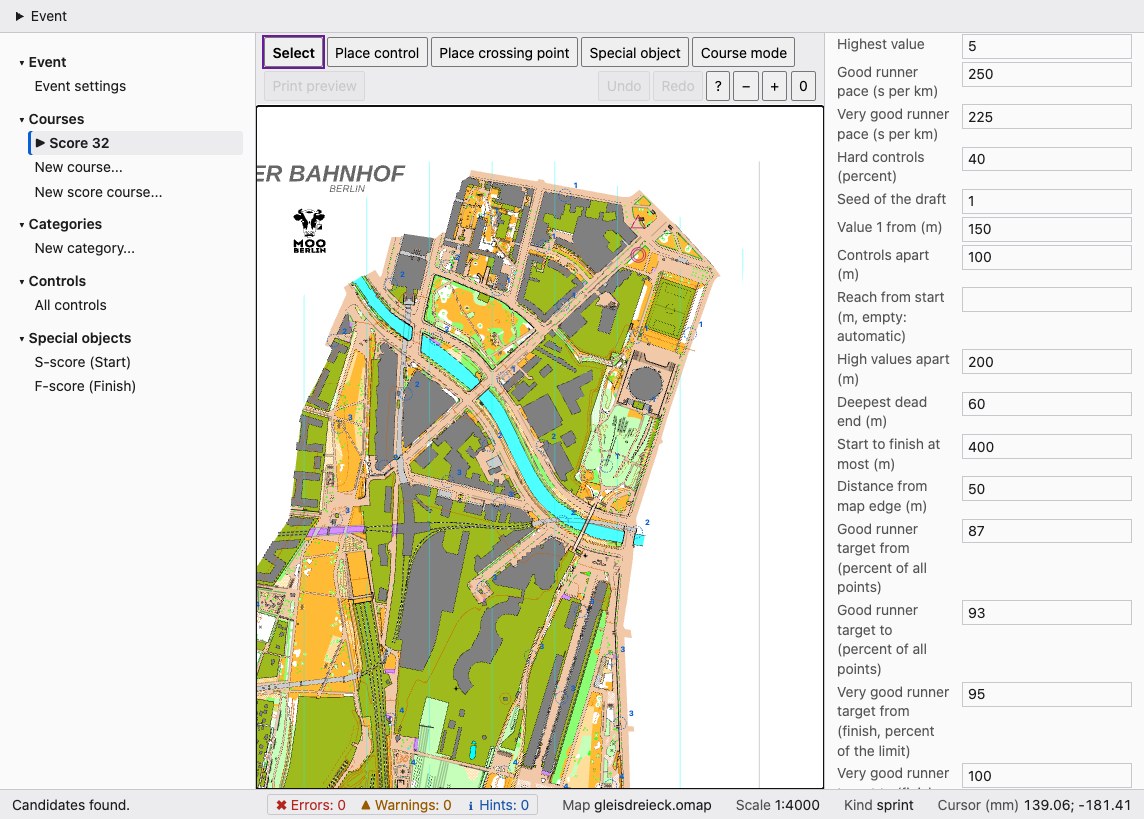
A new score course "Score 32" with a limit of 32 minutes, after "Suggest controls". Each candidate is a dashed circle with its value. Start and finish lie at the top right. The panel on the right holds the buttons and the settings, scrolled to the three limits of the practical sprint (deepest dead end, start to finish, distance from the map edge) and the target bands. Map: Remo Madella, MOO Challenge Berlin 2025, see examples/gleisdreieck/ATTRIBUTION.txt.
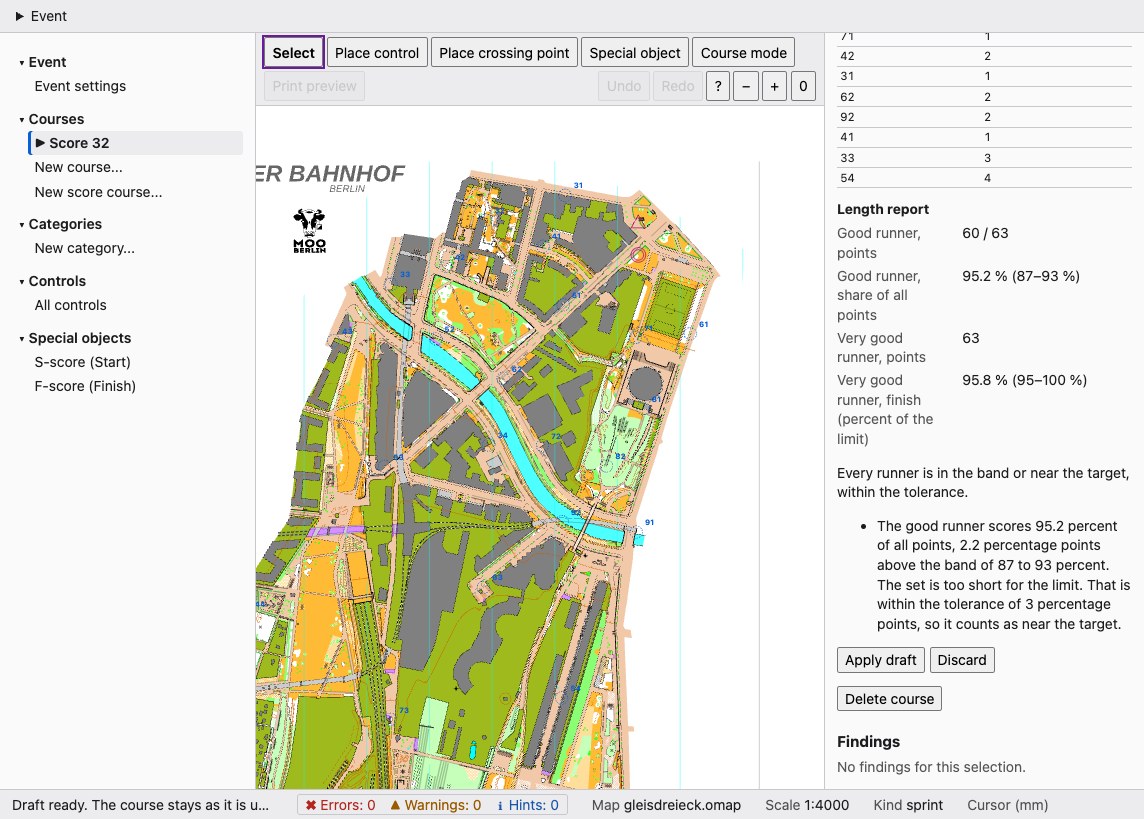
The result of "Draft course". The draft controls show their codes. The panel lists the length report: the very good runner is inside the band, and the good runner is 2.2 percentage points above it, within the tolerance of 3, so the report says that every runner is in the band or near the target. Nothing is written until you choose "Apply draft". Map: Remo Madella, MOO Challenge Berlin 2025, see examples/gleisdreieck/ATTRIBUTION.txt.
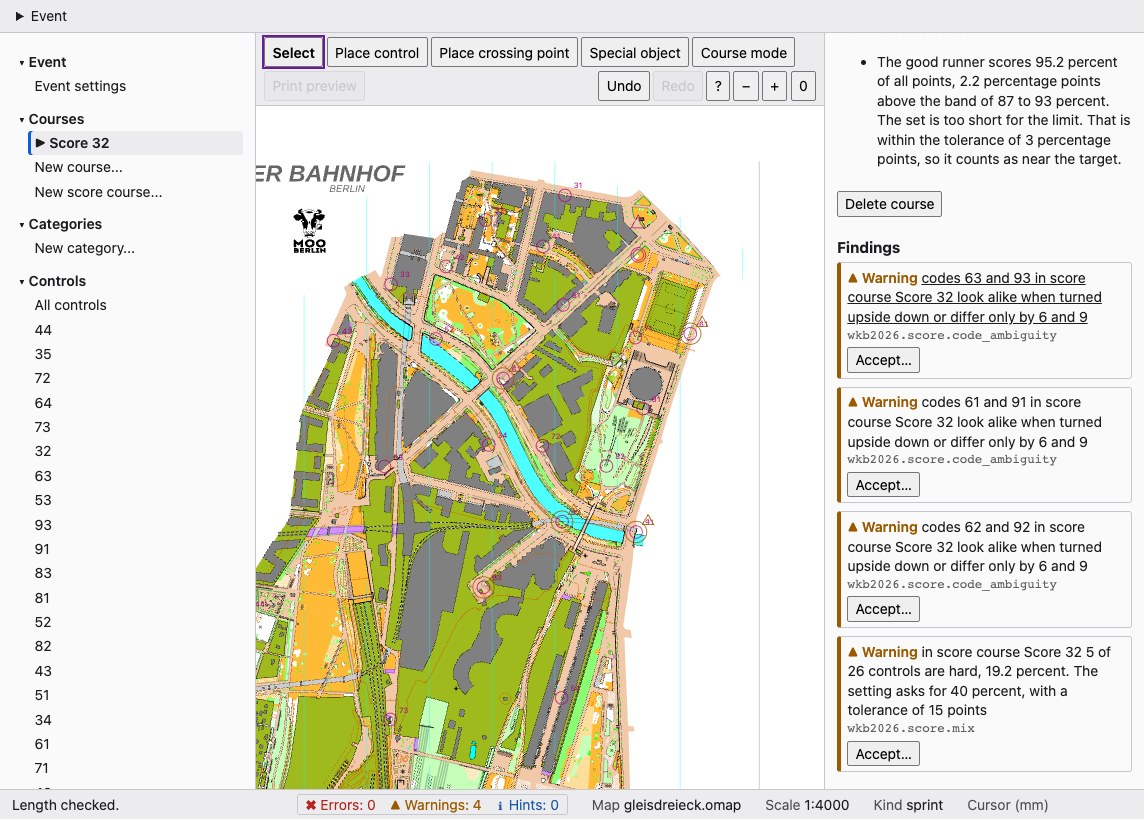
After "Apply draft" and "Check length". The course has 26 controls worth 63 points. The four findings at the bottom are warnings: three pairs of codes such as 63 and 93 look alike when turned upside down, and the share of hard controls is below the setting. Map: Remo Madella, MOO Challenge Berlin 2025, see examples/gleisdreieck/ATTRIBUTION.txt.
- Fields. Time limit, penalty per minute (the box "Default penalty" goes back to the default) and the shared settings: highest value, the paces, the share of hard controls, the seed, the four distances (value 1 from, controls apart, reach from the start, high values apart) and the three limits of ADR 0085 to 0087 (deepest dead end, start to finish, distance from the map edge). The two bands (both ends of each) and the tolerance are fields too; the defaults show as placeholders, and the length report says "in the band", "near the target" or "missed". "New score course..." in the tree makes a course with a 45 minute limit; the event needs one start and one finish.
- Suggest controls. Shows ranked candidates as dashed circles with their value, and as a table. "Accept" adds one to the course, as two steps for undo. A candidate without a free code cannot be accepted.
- Draft course. Computes a draft for the time limit and shows its controls, links and the length report with both runner profiles. Nothing changes until you choose "Apply draft". It writes exactly the draft on the screen, without a new search, and replaces the controls and the links of this course, as one step for undo. A change of the time limit or of a setting discards the draft. "Check length" reports the course as it is.
- While it runs. A suggestion or draft takes seconds. The buttons stay disabled, the panel says that it is working, and the editor still notices changes to the file. Candidates and drafts are not saved. If another program changes the project meanwhile, they are discarded and the panel says so.
- Course mode and the print preview are for individual courses only.
Control numbers
The number box of a control sits beside its circle. A dashed outline means the program placed it automatically and the project stores no position for it yet.
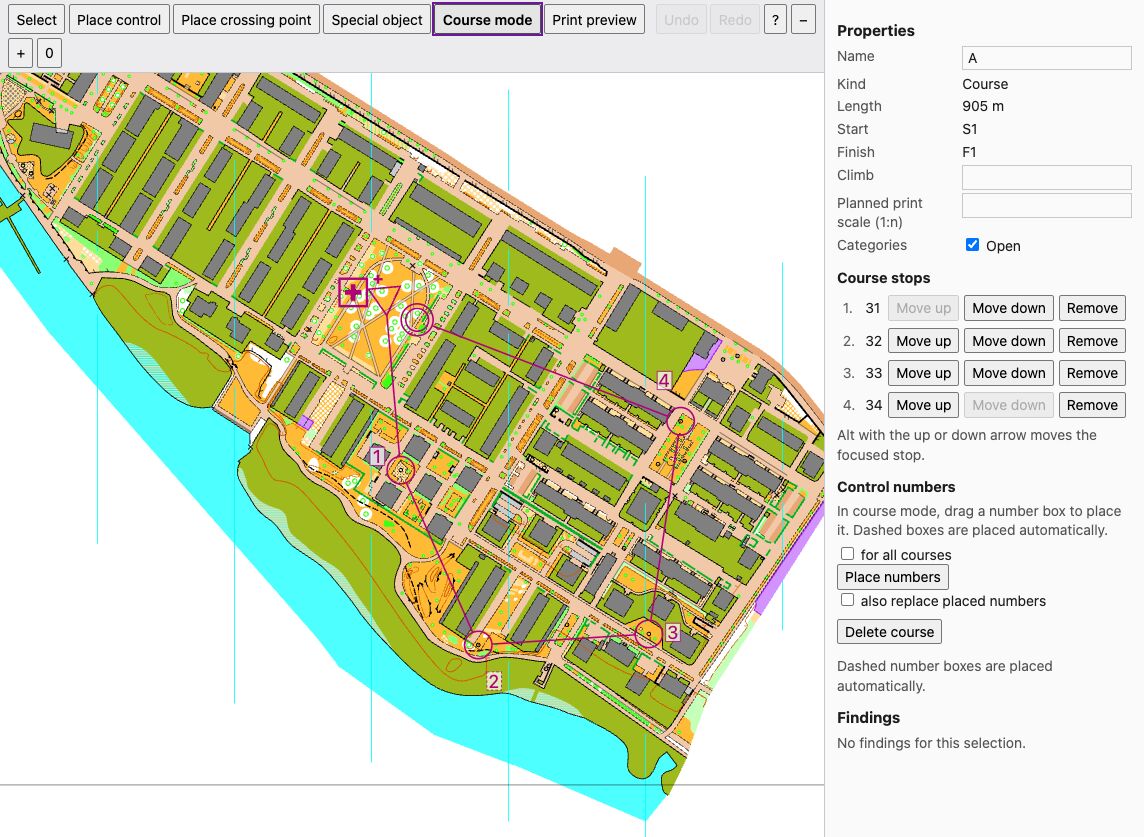
Course mode. The numbers sit beside their circles. The box 2 has a dashed outline, so the program placed it and the project stores no position for it. The boxes 1, 3 and 4 have a placed position. Map: Remo Madella, MOO Challenge Berlin 2025, see examples/rummelsburger-bucht/ATTRIBUTION.txt.
- Drag. In course mode, drag a number box to another place. On release the editor turns the place into a direction and a gap from the circle and stores both for this course.
- For all courses. With "for all courses" ticked, the placement is stored on the control and applies to every course that uses it. A placement the course already has for itself comes before the one on the control. The box then snaps back, and the status bar says so.
- Place numbers. "Place numbers" places the numbers of the course automatically and leaves placed numbers alone. With "also replace placed numbers" everything is computed again, except the numbers set on the control for all courses.
One drag is one step for undo. A gap outside the rule range gets a warning sign at the number box (see "Findings").
Control descriptions
Select a control. Its properties list the columns C to H, each folded and showing the current symbol. Open a column to see its symbols as a grid of icons, each with its number and text in the language of the program. The map objects within 3 mm of the control are listed below column D.
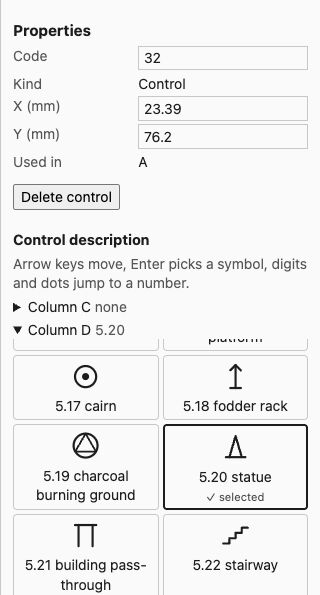
Control 32 with column D open. Each symbol shows its number and name; 5.20 statue is picked. Column C stays folded and shows its current value. Map: Remo Madella, MOO Challenge Berlin 2025, see examples/rummelsburger-bucht/ATTRIBUTION.txt.
- Pick. Click a symbol, or move with the arrow keys (Home and End jump to the first and last) and press Enter. Typing a number such as
1.3jumps to it. The symbol in use is marked, and the focus stays on the pick. - What a column offers. Column C has the symbols 0.1 to 0.5 for which of several similar features is meant, with the compass directions 0.1N to 0.2NW; the instruction rows are not offered there. Column D has 1.1 to 6.2, column E has the symbols of column D and 8.1 to 8.11, column F has 10.1, 10.2 and 11.1 (the number symbols 9.1 to 9.4 are not offered, because the project file holds no value for them), column G has the 12.x symbols, and column H has 13.1 to 13.3.
- Directions. A symbol with a direction exists only with one: choose
12.1N,12.1NEand so on, there is no plain12.1. - A symbol the column does not list. If the control holds one (an old or hand-written one), it appears at the top as "current value" and stays until you pick something else.
- No symbol. The entry "No symbol" empties the column.
- Undo. Each pick, and each emptied column, is one step for undo.
The list comes from freemapper-core, so every symbol you can pick can also be written to a .ppen file (ADR 0051).
Special objects
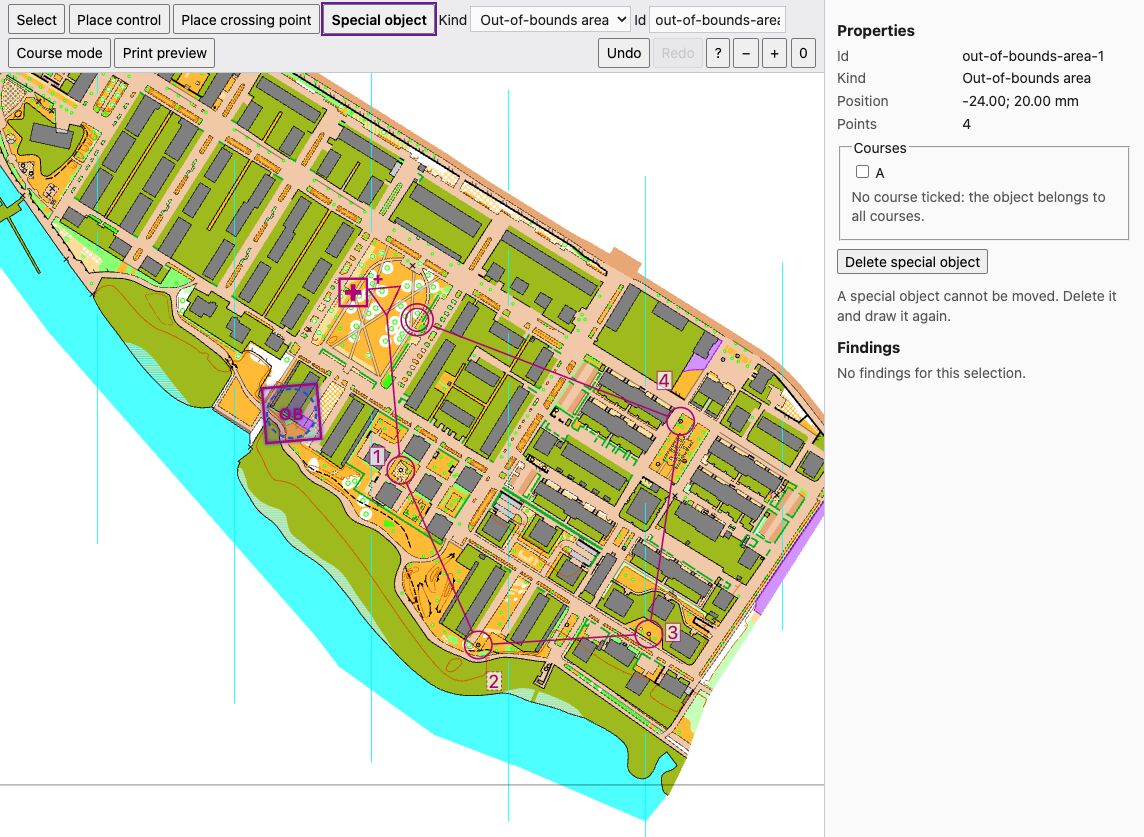
The "Special object" tool with the kind "Out-of-bounds area" and its id in the toolbar. The finished area (four points) is selected. The properties show id, kind, position, points and the courses it belongs to. Map: Remo Madella, MOO Challenge Berlin 2025, see examples/rummelsburger-bucht/ATTRIBUTION.txt.
- Draw. Choose "Special object", pick a kind (start, finish, first aid post, water point, marked route, forbidden route, out-of-bounds area, dangerous area) and check the id in the toolbar. It is proposed as
<kind>-<n>and you may change it. A start, finish, first aid post or water point is placed by one click. A line or an area is drawn by clicking its points and finished with Enter or a double click. Esc cancels, Delete takes back the last point, and a dashed preview with dots shows the drawing. An area needs three points, a marked route two. A forbidden route may have a single point, which is drawn as a cross. Each object is one step for undo. - Signs on the map. M marked route, a cross forbidden route, OB out-of-bounds area, ! dangerous area, plus first aid, W water.
- Assign to courses. In the properties of a selected object, tick the courses it belongs to. With none ticked it belongs to all courses. Start and finish have no course list.
- Delete. "Delete special object" or the Delete key removes the object; undo brings it back.
- No move. The editor cannot move a special object. Delete it and draw it again (ADR 0049).
Findings
Half a second after each change the editor runs the same check as check and shows the result.
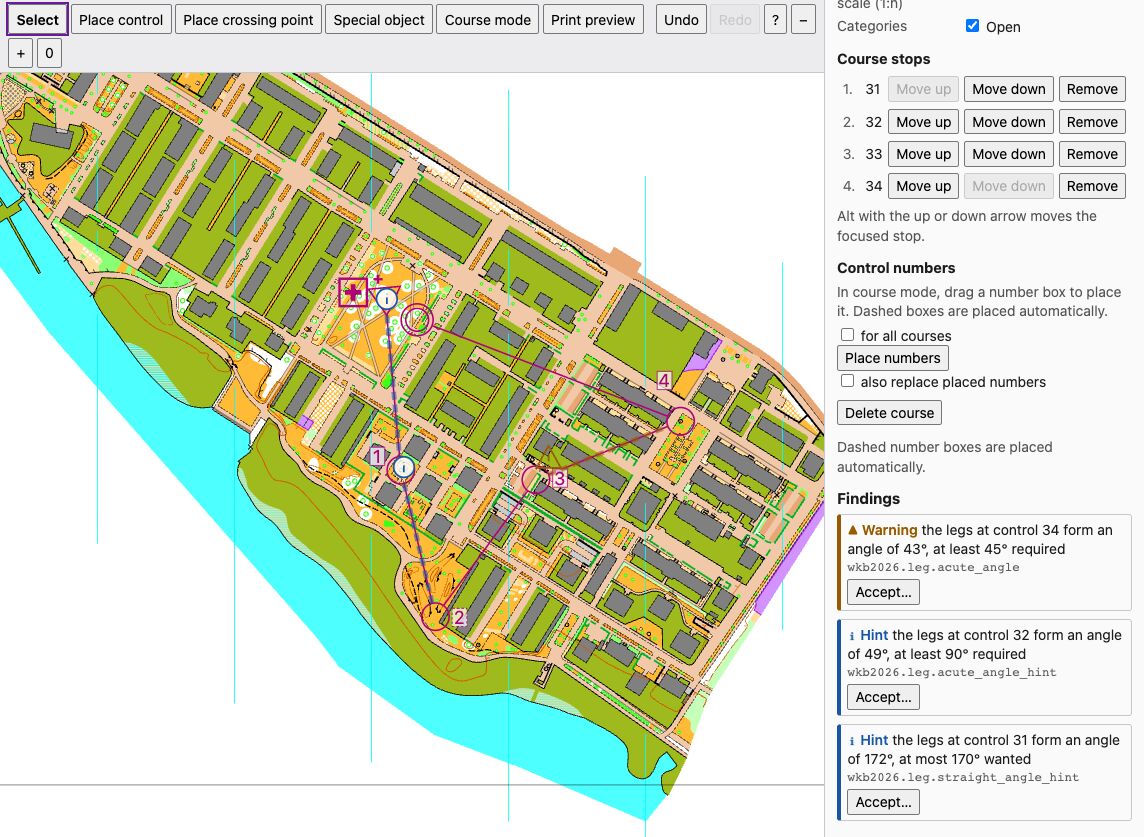
The findings of course A: one warning and two hints, all about angles. The course turns too sharply at control 34 (43 degrees, a warning) and at control 32 (49 degrees), and it runs almost straight on at control 31 (172 degrees). I moved controls 32 and 33 of the example course for this picture; the example course itself has no finding. Each finding has "Accept...", and a marker sits on each leg it concerns. Map: Remo Madella, MOO Challenge Berlin 2025, see examples/rummelsburger-bucht/ATTRIBUTION.txt.
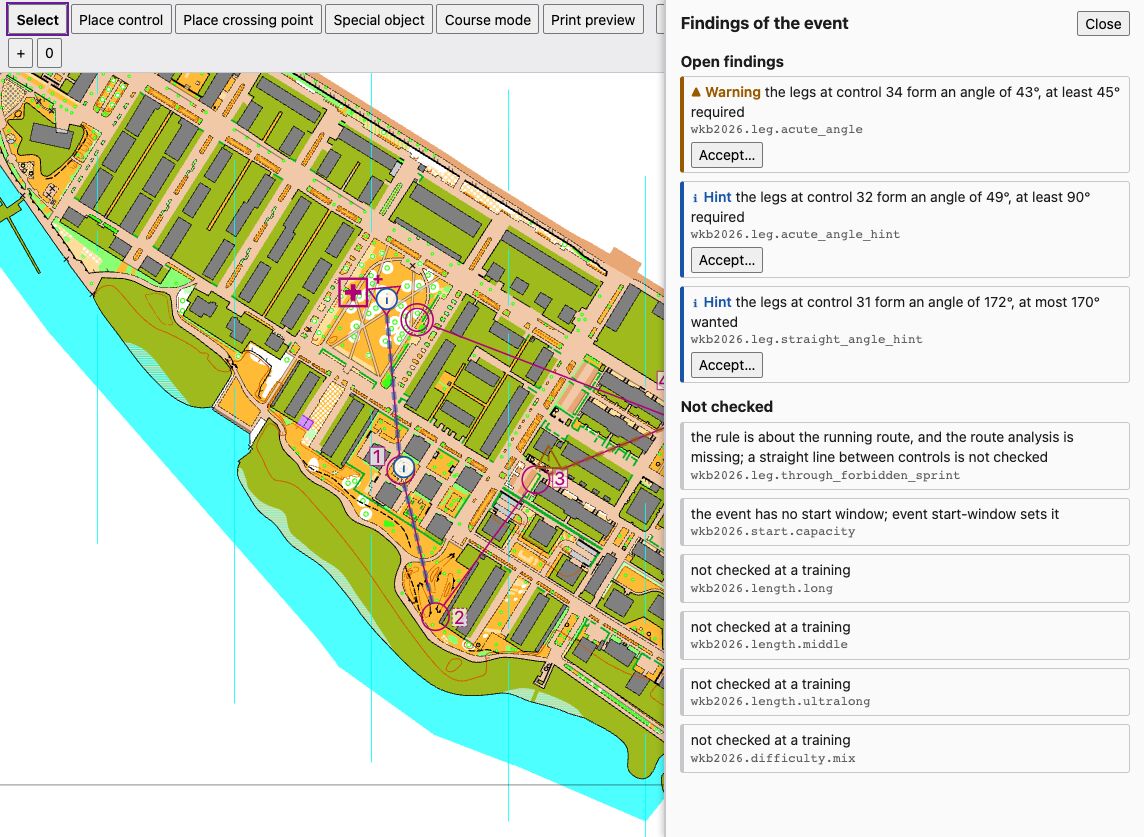
The findings drawer, opened by a click on the counts in the status bar. It lists the open findings of the whole event and, under "Not checked", the rules that did not run, each with its reason. Map: Remo Madella, MOO Challenge Berlin 2025, see examples/rummelsburger-bucht/ATTRIBUTION.txt.
- The status bar counts errors, warnings and hints of the whole event. Each count has a sign (cross, triangle, "i") as well as a colour. A click on the counts opens the drawer: all open findings, the accepted ones with their notes, and under "Not checked" the rules that did not run, with the reason.
- The panel on the right lists the findings of the selected control, leg or course. A click on a finding selects its place and fits the map to it.
- On the map a ring marks each control with a finding and a thick dashed line each leg. A warning sign at the number box means a gap outside the rule range. The signs differ by severity in shape too.
- "Accept..." asks for a note of up to 200 characters and stores the exception in the project file. The finding then moves to "Accepted" with its note, and "Remove acceptance" brings it back. Both are one step for undo.
Export and import
The Event menu has four entries. The browser never names a file; the editor writes only the project's own linked Purple Pen file.
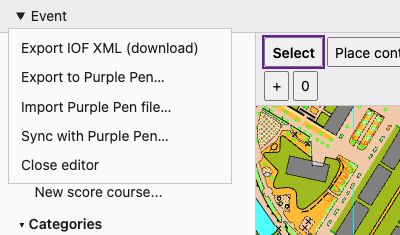
The "Event" menu. Its entries export IOF XML, export to Purple Pen, import a Purple Pen file, sync with Purple Pen and close the editor.
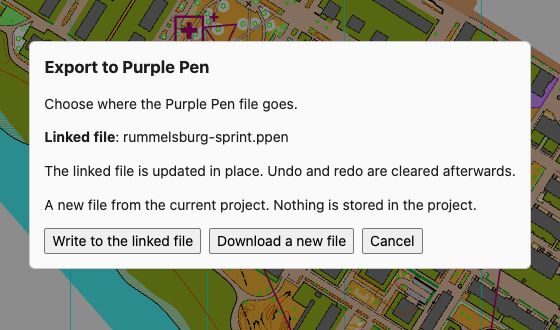
The dialog "Export to Purple Pen". It names the linked file rummelsburg-sprint.ppen and offers "Write to the linked file" or "Download a new file". Map: Remo Madella, MOO Challenge Berlin 2025, see examples/rummelsburger-bucht/ATTRIBUTION.txt.
- Export IOF XML (download). The browser saves the IOF XML of the individual and score courses, named after the project file. A dialog lists courses that were left out (team and relay courses) and says so when the map has no georeferencing.
- Export to Purple Pen... "Write to the linked file" updates the file
sources.ppennames, by the rules ofexport --ppen: it patches what the project changed and stores new Purple Pen ids in the project. Without a link the button is off. The commandexport --ppen FILEcreates a file and links it. "Download a new file" saves a new.ppen; nothing is stored in the project. A dialog lists the notes. - Import Purple Pen file... You choose a
.ppenfrom your computer. A project that already has controls, courses or special objects is refused unless you tick "Replace", which replaces all three. The import does not change the linksources.ppen: the editor never learns where the file lives. A dialog lists the notes. Files over 50 MiB are refused (ADR 0053). - Sync with Purple Pen... Uses the file
sources.ppennames, likesync. Close the event in Purple Pen first; a warning says so and can be silenced for the session. The panel lists the changes and the conflicts. Each conflict has "Keep courseplan" and "Take Purple Pen"; "All courseplan" and "All Purple Pen" sync at once with that side everywhere. "Sync" is on when no conflict is open (ADR 0054).
Writing to the linked file and importing clear the undo history, and so does a sync that wrote files, because they change more than one step. A sync that wrote nothing keeps it.
Undo and redo
The toolbar buttons "Undo" and "Redo" and the keys Ctrl/Cmd+Z and Ctrl/Cmd+Shift+Z (or Ctrl+Y) walk through the steps of this editor session. One placing, one drop, one field change, one delete and one series of nudges is a step each. The status bar reports "Undone" or "Redone".
- The editor keeps the last 100 steps, as long as their file copies together stay under 64 MiB; the oldest steps go first. They are lost when you close the editor.
- Undo and redo act on the state you see. If a second browser tab shows an older state than the file, they refuse and the tab loads the current state; they never revert what the other tab did without you seeing it.
- Undo restores the file as it was before the step, comments and layout included. That also takes back whatever else the step changed in the file, for example the removal of a control from a course.
- If another program changed the file after your last step, undo and redo refuse. The status bar says "The project file changed outside the editor, so undo and redo are no longer possible. Nothing was changed." and the history is empty from then on. The editor notices this at your next undo or redo, not at the moment of the outside change.
Shortcuts
Press ? or the "Keyboard shortcuts" button for this list in the page. A key typed into a field is never taken as a shortcut.
| Keys | Effect |
|---|---|
| Ctrl/Cmd+Z | Undo |
| Ctrl/Cmd+Shift+Z, Ctrl+Y | Redo |
| Delete, Backspace | Delete the selected control, bend or special object; while drawing, the last point |
| Esc | Cancel a drag or a drawing, drop the chosen leg, leave course mode or go back to the select tool |
| Alt+Up, Alt+Down | Move the focused stop of a course |
| Enter | Finish the line or area being drawn |
| V | Select tool |
| C | Place-control tool |
| S | Special-object tool |
| Arrow keys | Move the selected control by 0.1 mm (without a selection: move the view) |
| Shift+arrow keys | Move the selected control by 1 mm |
+, - | Zoom in, zoom out (Ctrl or Cmd with these keys still zooms the browser) |
0 | Fit the map to the window |
? | Show the list |
Mouse and tree
- In the tree, the arrow keys, Home and End move between entries and Enter selects.
- With the mouse you move the view by dragging on empty space and zoom with the wheel.
- Tab moves from the tree to the map, to the properties and to the menu.
Changing a code or a name on the command line
freemapper-courseplan control code hall.courseplan.toml 31 K7
freemapper-courseplan course rename hall.courseplan.toml A Long
control code gives control 31 the code K7. course rename renames course A to Long. Courses, special objects and accepted findings that name the control or course follow. A code or name that is taken, empty, padded with spaces or too long is refused with a message, and the file stays as it was. The AI assistant has the tools set_control_code and rename_course for the same.
Changed outside the editor
If another program changes the project file, for example freemapper-courseplan control move in a terminal or the AI assistant, the page reloads it after about two seconds and says so in the status bar. A tab in the background does not ask again until you open it. If the map changes, the page reloads it. If the linked .ppen changes, the status bar shows a note.
If you make a change in the page while the file is out of date, say between two polls, the editor refuses it. It loads the current state, shows the banner "The project file changed outside the editor. The editor loaded the current state; nothing was changed." at the bottom of the map and writes the same text in the status bar. Look at what the other program did and make your change again if you still want it. "Dismiss" closes the banner.
If the project file does not load, for example because someone left it half edited, every change in the editor is refused with the load error until the file is readable again.
Commands that find the file changed
The editor is not the only program that saves the project file. Every command that changes it checks, right before it saves, whether the file is still the one it read. If it is not, for example because the editor saved a move while the command ran, the command writes nothing, prints
rummelsburg-sprint.courseplan.toml changed since it was read; nothing was written
and exits with code 1. Run the command again; it then reads the new state. The check counts any change in the file, also a save from a text editor that changed nothing in the event. The AI assistant gets the same refusal in words of its own (chapter 3). sync writes the .ppen before the project file. If the project file changes in between, sync reports a partial write, and running it again finishes the job (chapter 9).
Privacy and security
- The server listens on
127.0.0.1only. Other computers on the network cannot reach it. - The address contains a random access token (32 hex digits). Anyone who knows the full address can look at the event on your computer. Do not pass the address on.
- The token also shows in the process list while the program hands it to the browser. On a computer that several people share, another user can read it there. Start the editor with
--no-browseron such a machine and open the address yourself, or work on your own computer. - The page loads nothing from the network. The server reads only the project file, the map and the linked
.ppen. It accepts no file names from the browser. - The server also checks the origin and content type of requests that write, so a foreign web page in the same browser cannot trigger anything. The editor changes only the project file, and only through the operations of the MCP tools. The address of an operation names no file.
The decisions behind this are in ADR 0042, 0045 and 0046.