 freemapper
12. The editor in the browser
freemapper-print edit opens a project in a page in your browser. You see the sheet as it will be printed, click an element and move it, change a layout in a form, draw a window or corridor mask and move a control number. The editor is for people. It writes the same project file as the commands and the MCP server and goes through the same functions, so a result from the editor is the same as one from masks window or set_layout. An AI agent keeps using the command line or MCP (chapters 3 and 5).
Start
freemapper-print edit <project> [--port N] [--no-browser]
<project> is freemapper-print.toml or the folder that holds it. The program prints one line, "The editor is running at …", with an address that starts with http://127.0.0.1: and a port, followed by a long random part. It opens that address in your default browser. If no browser opens, or you want another one, start with --no-browser and copy the address from the terminal into the browser. The random part is new on every start, so an address from an earlier session no longer works. --port fixes the port; without it the system picks a free one.
The project needs a map and, if you want course sheets, a course file; the editor shows what check and export would draw. Without a course file it shows the layouts, and the course list is hidden with a note.
The page speaks the language you gave with --lang or FREEMAPPER_LANG. Without either it follows the language of the browser, and English if that is neither German nor English. LANG and LC_* do not decide here.
To stop the editor, click Done in the File menu or press Ctrl+C in the terminal. The program then prints "The editor has ended. The project file is …". After Done the page also says that you can close the window. After Ctrl+C it cannot be told, so within a few seconds, while the tab is visible, it says "The connection to the editor is gone." and offers a Reload button.
The page
- Project (tree, left): Sources (map and course file), Layouts, Masks, Shared elements, Assignments, and "Elements of layout X" for the layout on screen. Click an entry to select it.
- Sheet preview (middle): the sheet drawn exactly as
exportdraws it, with the course overprint, masks and control numbers. Above it you choose the course and the layout. A course shows on its assigned layout. - Properties (right): the form of what you selected, and the answer to a click on the sheet: "Element …", "Number of control …", "Map object no. … in the sheet" or "Mask …". Under the sheet the notes of the sheet appear, each with its severity as a word (Info, Warning, Error), and below them the list "Control numbers in conflict" when there is one.
- Menu (top): File (Check all sheets, Done), Edit (Undo, Redo), Masks (Window mask, Corridor mask), View (Zoom in, Zoom out, Fit the page), Export (This sheet as PDF, All sheets as PDFs, All courses as one PDF).
- Status bar (bottom): the last message, the project, the print scale and the page size.
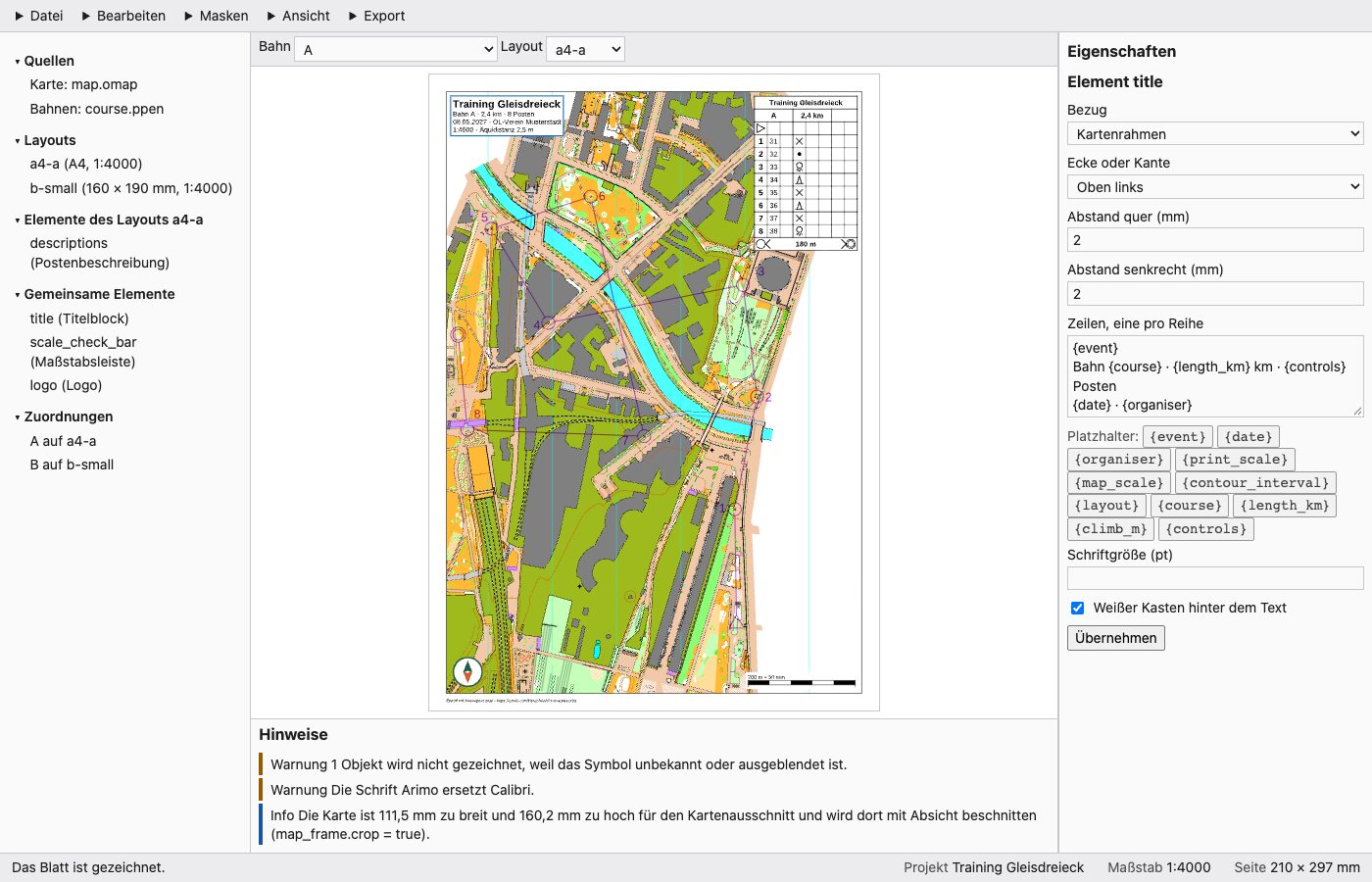
The editor with the title block selected: project tree on the left, sheet preview in the middle, form on the right, notes below the preview (German interface). Map: Remo Madella, MOO Challenge Berlin 2025.
Every change is written at once
There is no Save button. Each change you make, a move, a form with Apply, a mask, a number, is written into the project file at the moment you make it, with the same comments the commands write. The file is always the current state. What you see on the sheet is drawn again from the file after each change.
Undo and Redo (Edit menu, Ctrl+Z, Ctrl+Shift+Z or Ctrl+Y; on a Mac Cmd instead of Ctrl) restore the whole file as it was before the change. The editor keeps the last 100 steps. A new change after an undo drops the steps you could have redone. In a text field Ctrl+Z belongs to the field, not to the editor.
If another program changes the project file while the editor is open (you edit it in a text editor, or an agent writes a mask), the page notices within two seconds and shows a bar, "The project file changed outside the editor.", with a button, Reload. Reload reads the file again and redraws the sheet. Until then a change from the page is refused with "The project file changed after this page last read it. Load it again before you change anything." Undo and Redo then stop as well ("The project file was changed outside the editor, so undo and redo stop here. Load it again."); the editor never writes an old state over your outside change.
What you can do
Select and move elements. Click an element on the sheet, or an entry in the tree. Drag an element with the mouse; it snaps to 0.5 mm. Or use the arrow keys: 0.5 mm per press, 1 mm with Shift. The editor changes the offset_mm of the element's anchor (chapter 7), so a drag stays one small change in the file. A shared element belongs to every layout. If you move one, the page asks once per element and session, "Move a shared element?"; "Move it" moves it in all layouts, because that is where it is stored.
Change a layout or an element. Select a layout in the tree for the form with paper or free page size, orientation, print scale, passe-partout width, frame line width and north lines. Select an element for its form: anchor (Page or Map frame), corner or edge, the two distances, and the keys of its kind (lines and text size, image file and printed width, cell size, white box). The placeholder buttons insert the placeholders of chapter 7. Apply writes the change. A logo file is a path relative to the project file and must lie inside the project folder.
Window mask. Masks menu, Window mask. Click the number of a control on the sheet to add or remove its control, or type codes (31,32) or places (2-5) into the field. Empty means every control. Then radius, own radii (35=20), the gap between windows, "No window at the start", "No window at the finish", an id, and "Print the course with this mask". "Add the window mask" writes it, like masks window. Radii and gap are in millimetres on paper. A window mask needs a course file.
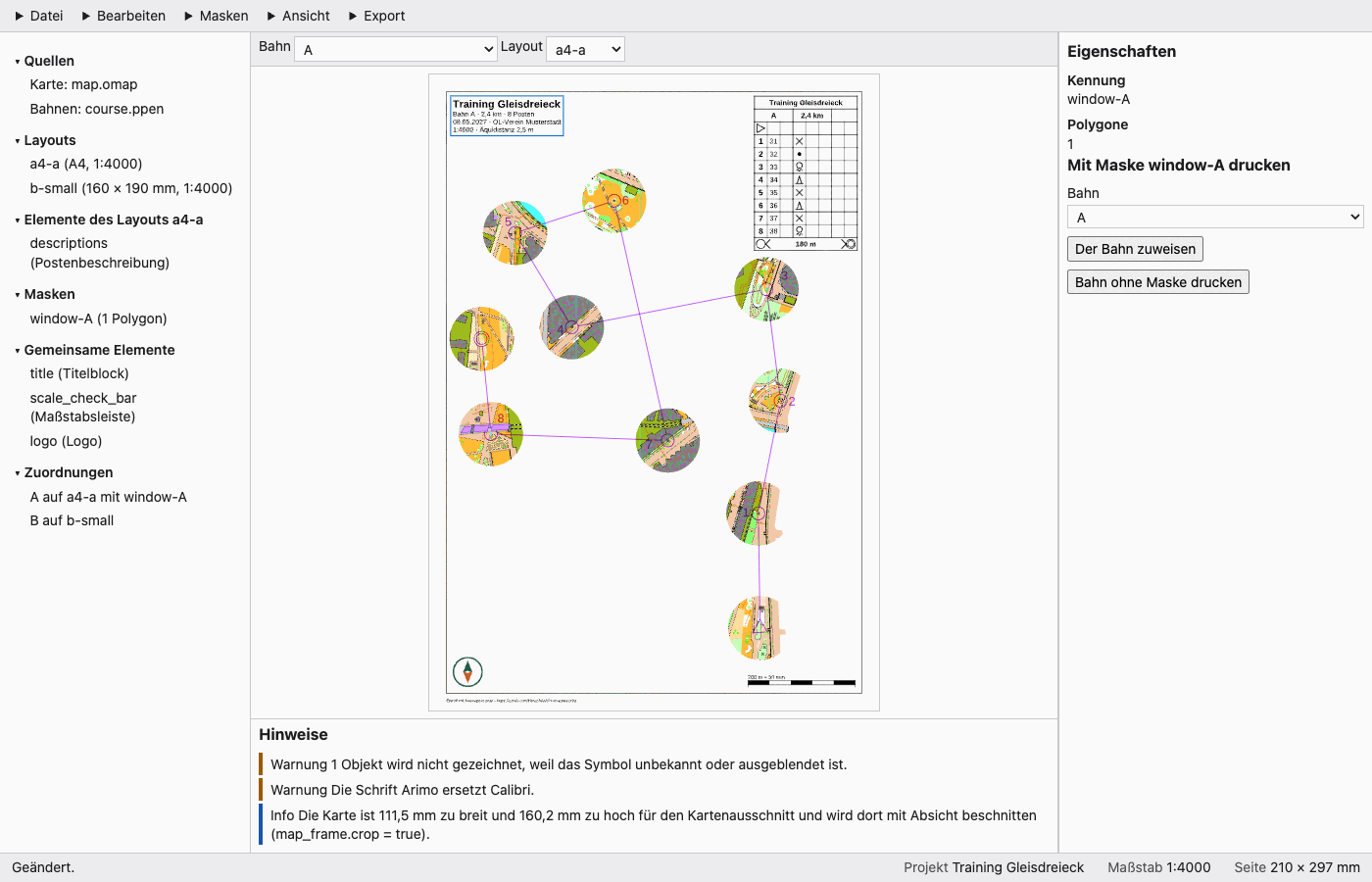
The editor after "Add the window mask" ("Fenstermaske anlegen" in the German interface): the preview shows the windows, and the mask "window-A" is in the tree. Map: Remo Madella, MOO Challenge Berlin 2025.
Corridor mask. Masks menu, Corridor mask. Click the points of the line on the sheet and double-click the last one; the form says how many points are drawn. Instead you can type the route into "Points typed as x,y;x,y in map mm, y up", the same form as masks corridor --points; typed points are used instead of drawn ones. Set the width in millimetres on paper, choose the course and whether to assign the mask, then "Add the corridor mask". Escape throws away the line drawn so far; a second Escape ends the mode. Drawing a line is a mouse job, but every mask can be made with the fields alone.
Assign a mask. Select a mask in the tree. "Assign to the course" gives it to a course, "Print the course without a mask" takes it away.
Control numbers. Notes about a number that sits badly show under the sheet in "Control numbers in conflict". "Accept the proposal" writes the proposal of check. "Enter a position" opens a form with the direction (degrees, 0 is east, counter-clockwise) and the gap to the circle in millimetres on paper; "Set the position" writes it. You can also drag a number on the course sheet. Either way the page asks "Where does the position apply?": "For the layout" or "Only this sheet", the same as --layout-wide and --sheet. Every control number can be selected with M, not only the ones in conflict.
Check. File menu, Check all sheets. It draws every sheet and lists the notes of check, with the line "All sheets are fine." or "Some sheets need a look.".
Export. Export menu: "This sheet as PDF", "All sheets as PDFs" or "All courses as one PDF". A dialog asks for the folder. The browser cannot choose a folder, so you type its full path, for example /Users/ann/pdfs or C:\Users\Ann\pdfs. The folder must exist. The page remembers the last one you typed in this browser. "Export" starts; the status bar counts the sheets done. "Stop" ends the export after the sheet in hand; the PDFs written before stay whole, and no half-written file is left. The result lists the files with their size, the notes and the reminder to print at actual size (chapter 9). Only one export runs at a time.
Keyboard and mouse
| Keys | Effect |
|---|---|
| Ctrl+Z (Cmd+Z), Ctrl+Shift+Z, Ctrl+Y | Undo, redo. |
| Tab, Shift+Tab | Move through tree, course and layout choice, sheet, notes, properties and menu, in this order. Menus open with Enter. |
| N, Shift+N | Select the next, previous element of the sheet. |
| M, Shift+M | Select the next, previous control number of the sheet and open its form. |
| Arrow keys | With an element selected: move it 0.5 mm (Shift: 1 mm). Otherwise: pan the sheet. |
| + (also =), - | Zoom in, out. |
| 0 | Fit the page. |
| Escape | Ends a drawing: first the line, then the mode. With no mode open it clears the selection, so the arrow keys pan again. |
N, M, the arrow keys, + - and 0 work while the sheet has the focus; Tab reaches it. Only drawing on the map is mouse-only: clicking points of a corridor and clicking control numbers for a window mask. The fields give the same result by typing.
Closing
Done and closing the window ask only while a drawing mode holds unsent work: a corridor line that is not finished, or controls you chose for a window mask and did not apply. The question is "Throw away your work?" with "Throw it away" and "Keep working". Otherwise nothing is lost, because everything is already in the file. Ctrl+C in the terminal ends the editor at any time; an export in progress stops after the sheet in hand.
Safety
The editor listens on 127.0.0.1 only, so only programs on your computer reach it. The address contains a random token that changes on every start, and the page only accepts changes that carry it and come from its own address. The editor itself sends nothing. The program contacts GitHub only for the update check and for update itself (chapter 2), the check at most once a day.
Problems
| What you see | What to do |
|---|---|
| No browser opens. | Copy the address the program printed into a browser, or start with --no-browser and do that every time. |
| The address from yesterday gives an error. | The token is new on every start. Use the address of the running session. |
| "The connection to the editor is gone." / "The editor has ended. You can close this window." | The editor is not running any more. Start edit again. |
| "The project file changed outside the editor." | Click Reload. Your own changes are in the file already. |
| "There is nothing to undo." | No step is left to undo, for example right after you opened the project. |
| "The change was not made." | The change was refused; the message names the reason, for example an id that exists already. Change the entry and try again. |
| "The sheet could not be drawn." | The map or course file cannot be read or does not fit. check on the command line names the cause. |
| "A window mask needs a course file." | The project has no course file; use a corridor or add one with init --courses. |
| "the folder … for the PDFs does not exist; create it first" | Create the folder, then export again. |
| "A logo file must lie inside the project folder." | Put the image next to the project file or in a subfolder and give a relative path. |